
Check products, prices & stock
Check the package a customer will actually receive, not just the product name.
Use your approved catalog as the reference. A product can have several packages or variants.
See where to go
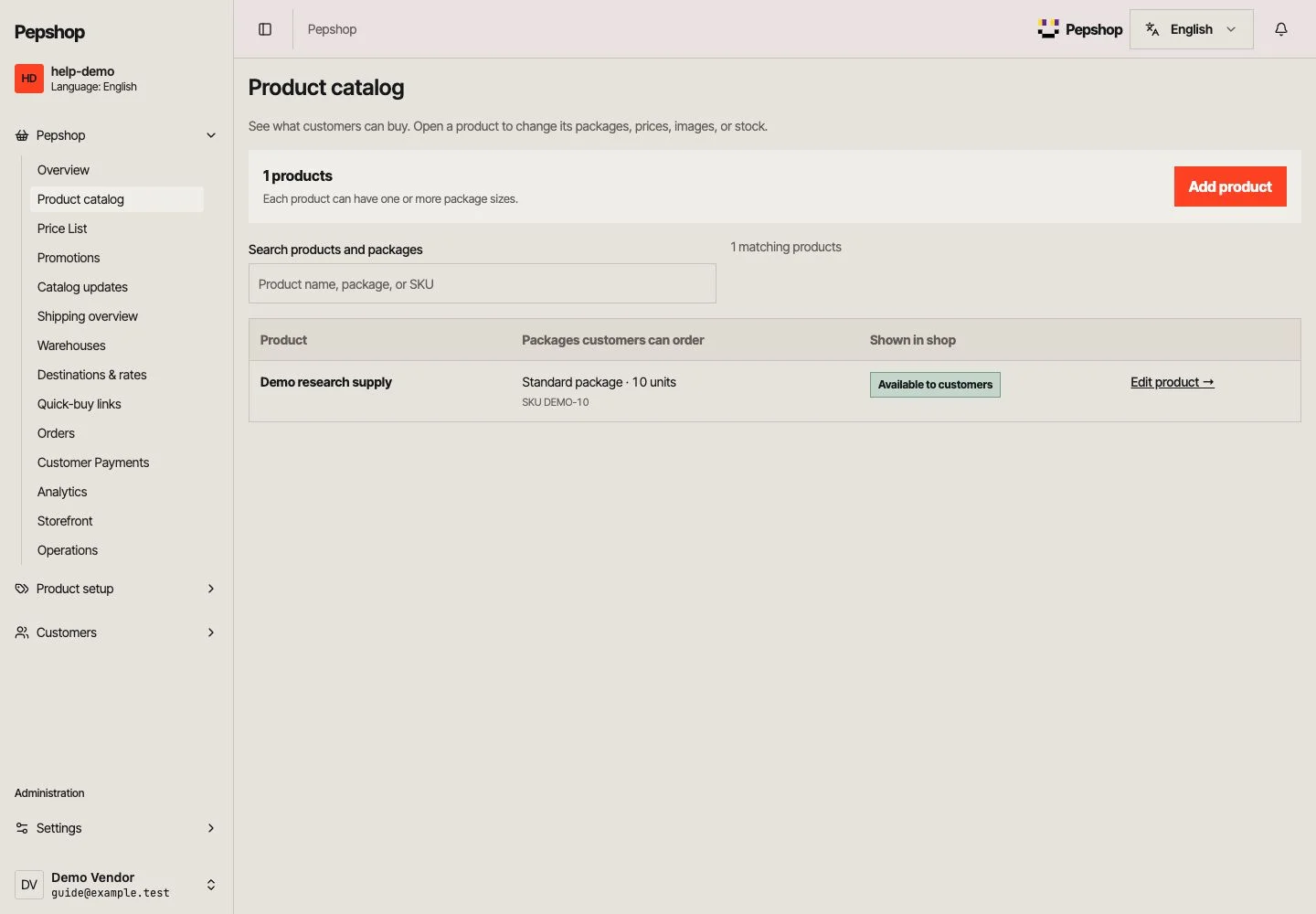
Find a product and open its details. Check the name, description, images and any lab-report link.
Open Product catalog
Find a product and open its details. Check the name, description, images and any lab-report link.
Check every package
Review strength or size, units per package and SKU. Make sure the package name tells the customer what one ordered quantity means.
Check price, stock and warehouse
Use Price List for a compact view. Check the currency, package price, available stock and assigned warehouse. Review changes before saving or publishing.
Check the public product
Open the shop and select the same package. Confirm the displayed price, quantity and availability match.
What you should see
The public package matches your catalog and can be understood without asking you to explain it.
If something is not right
You cannot publish changes
Some vendor roles can prepare a draft or CSV for staff review. Use Catalog updates or send the exported file to your onboarding contact; do not create duplicate products.
Keep stock current
Update stock when availability changes. A shipping quantity may be limited by tracked inventory and previous shipments.