
Add useful order notes
Keep packing and follow-up details with the order.
Open the correct order. Notes do not change the address, payment or tracking fields.
See where to go
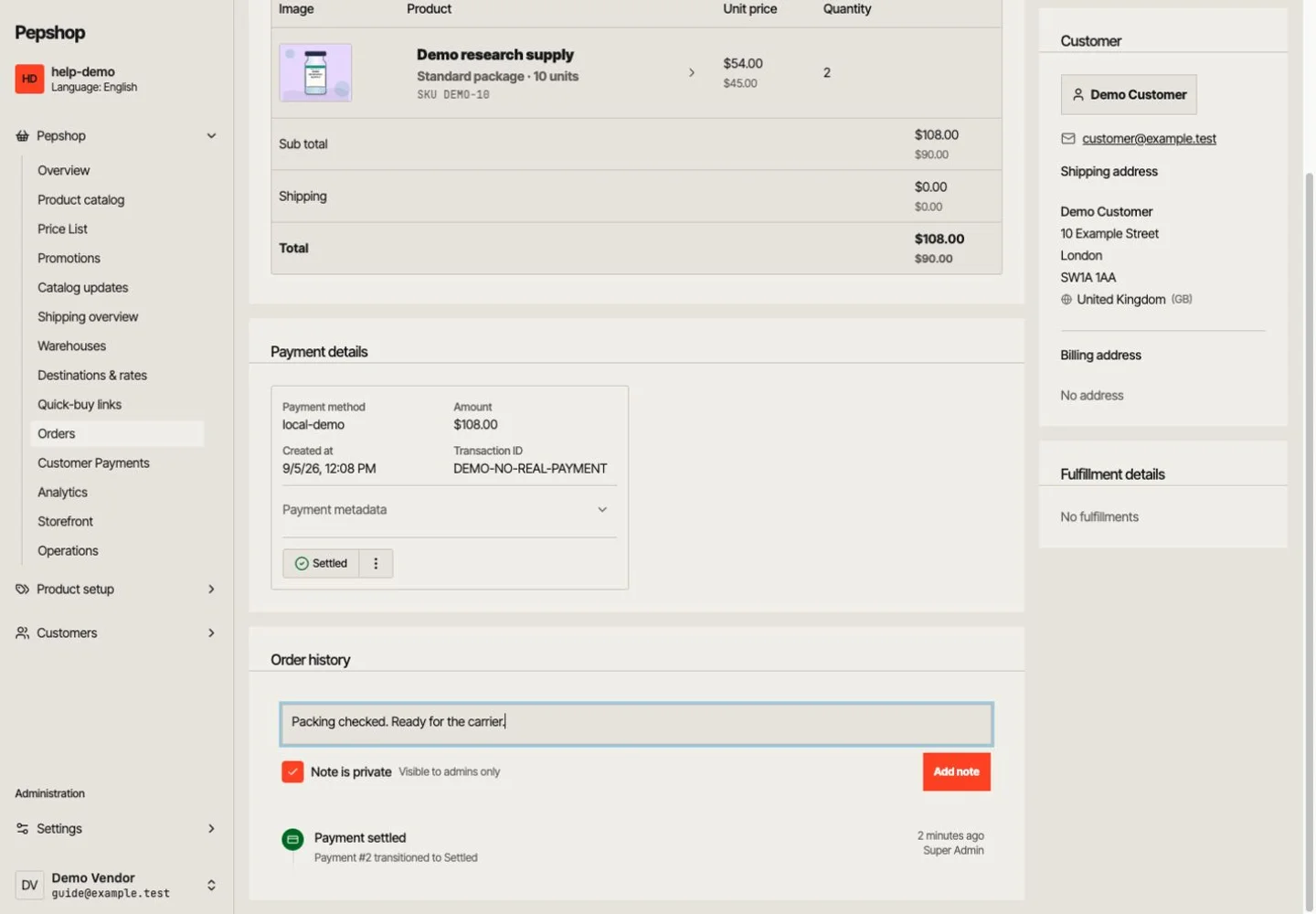
Open the order detail and find the History section and its note action.
Find the order history
Open the order detail and find the History section and its note action.
Write a specific note
Record the action and next step, for example: “Customer asked us to hold dispatch until Friday; confirm before packing.” Avoid unnecessary personal information.
Check visibility before saving
Use a private note for internal handling details. Leave “Note is private” checked for “Visible to admins only”. Unchecking makes it visible to the customer. Do not assume a note sends an email to the customer.
Save and check the history
Save the note and confirm it appears in the order history. Use Ship order for tracking and the appropriate edit action for actual order changes.
What you should see
The handling detail is recorded with the correct order and visibility.
If something is not right
You do not see a note action
Your role may not allow that action. Ask your onboarding contact for help; do not put internal details into customer-facing fields instead.