
Check your receiving details
Verify the currency, network and address for each customer payment route.
Have the receiving details approved for your business. You do not need a private key or seed phrase.
See where to go
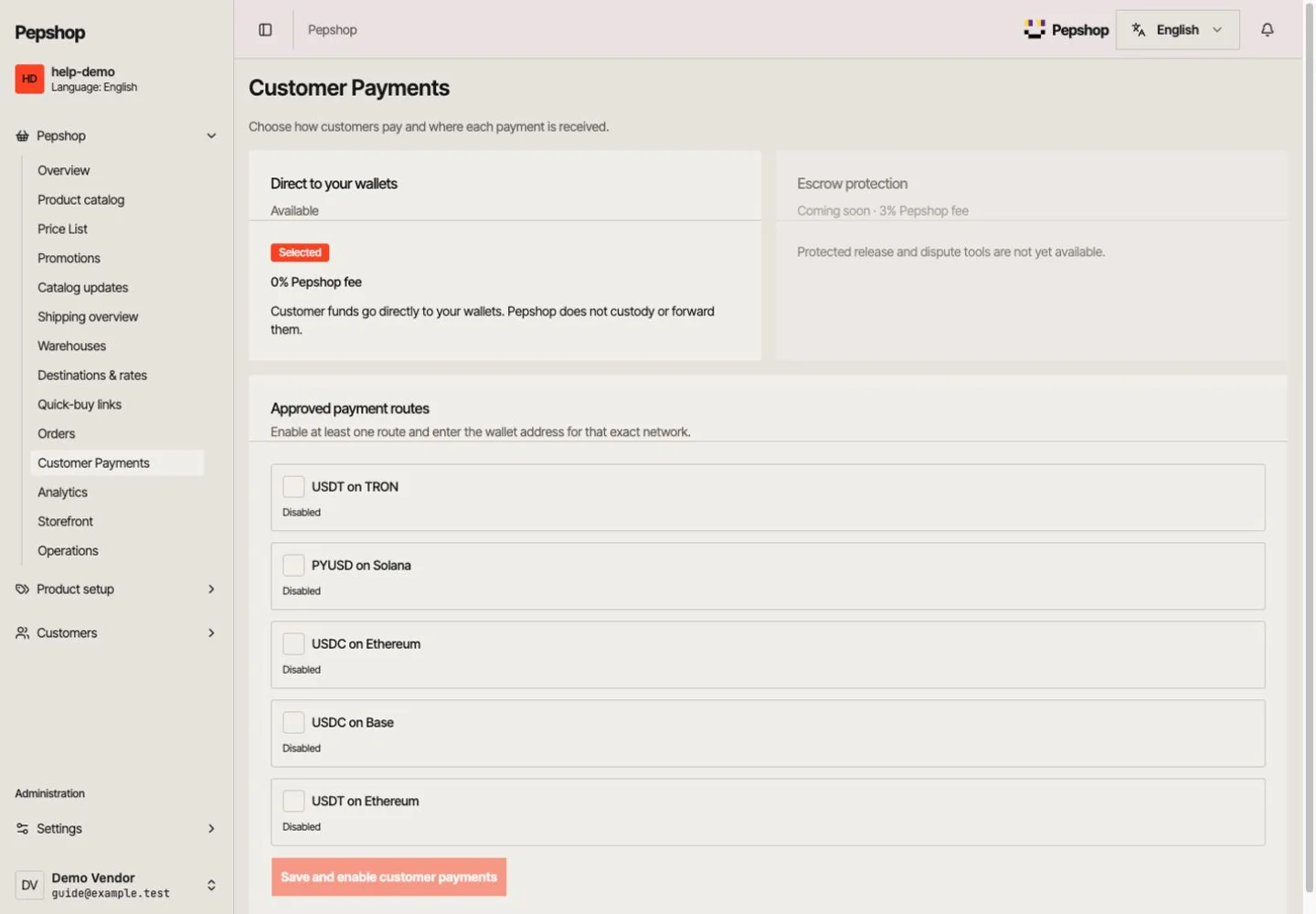
Select Customer Payments in the vendor portal. Review whether payment routes are configured.
Open Customer Payments
Select Customer Payments in the vendor portal. Review whether payment routes are configured.
Check the enabled routes
For each enabled route, compare the asset, exact network and complete receiving address with your own verified record. Matching the coin name alone is not enough.
Save only intentional changes
If you need to update a route, enter the correct address for that network and select Save and enable customer payments. At least one enabled route needs a receiving address.
Reopen and verify
Confirm the saved routes. Check that checkout offers the intended payment options without sending a real payment as a test.
What you should see
Your enabled payment routes point to the intended addresses and networks.
If something is not right
Customer Payments and Payouts differ
Customer Payments controls how customers pay. If Payouts is available, it shows settlement balances and payout records. Checking one does not verify the other.
A payment needs review
Open the order and read the current payment status. Do not ship based only on a transaction screenshot. Contact support with the order number if the status is unclear.