
Find & check an order
Understand what was bought, whether it is paid, and what still needs shipping.
Use the order number from the notification or the customer. Check the selected shop.
See where to go
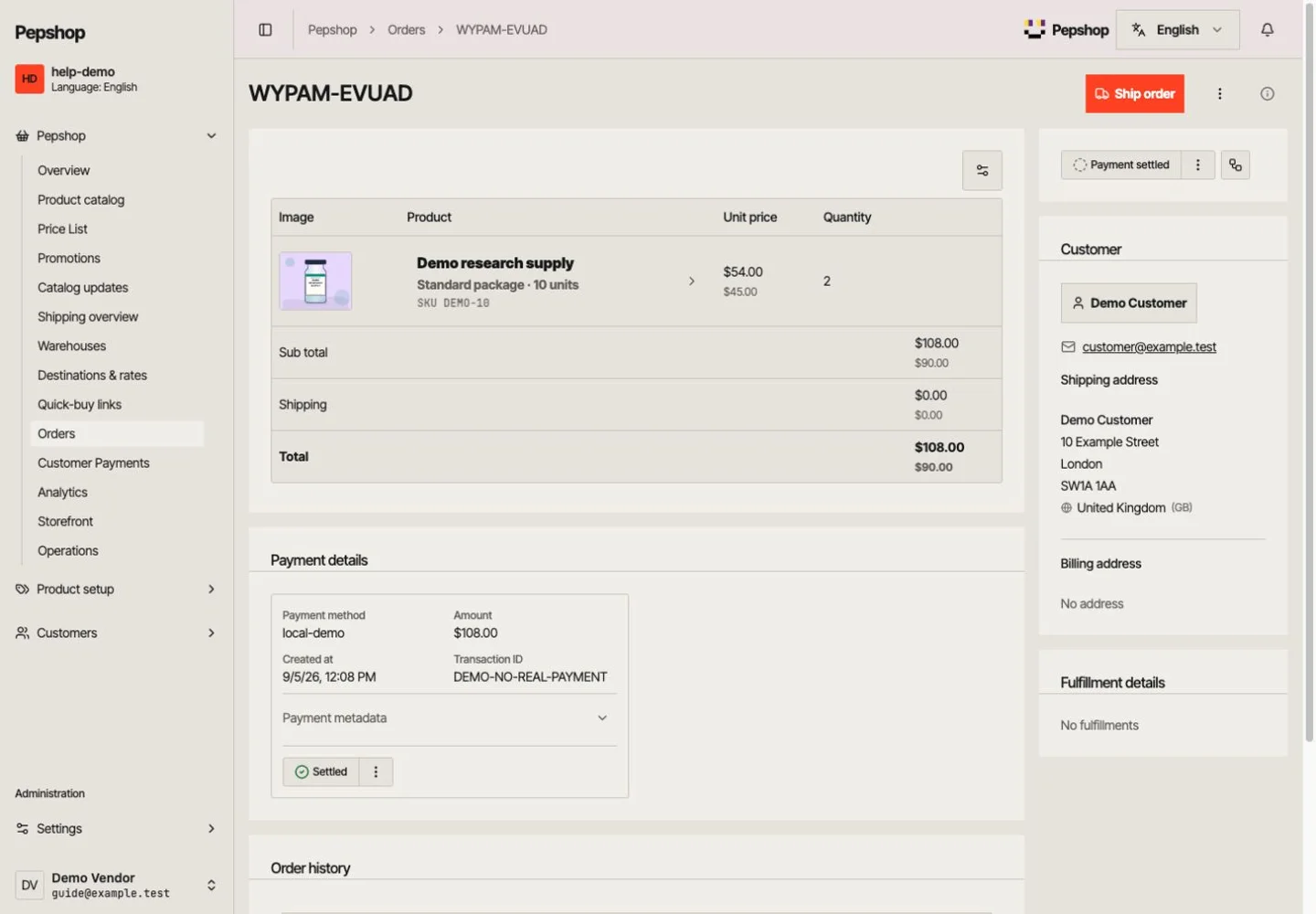
Select Orders and find the order number. Open the detail page rather than relying on the email alone.
Open Orders
Select Orders and find the order number. Open the detail page rather than relying on the email alone.
Check the payment status
Paid means the order has reached its paid state. Waiting for payment or Detected is not the same. Review any refund or additional-payment information.
Check what to send and where
Review each package, quantity, warehouse, recipient, complete delivery address and shipping service. Resolve an unclear address with the customer before shipping.
Read the order history
Check previous shipments and relevant notes. Ship only the remaining items. Record any useful handling information in the order notes.
What you should see
You know the current payment state and exactly what remains to be shipped.
If something is not right
An order is missing
Check the selected shop and the complete order number. Ask the customer which shop they used. A payment reference and an order number can be different.