
Check delivery destinations & rates
Make sure your warehouse can deliver where your customers are ordering.
Know the countries, services and prices your business supports.
See where to go
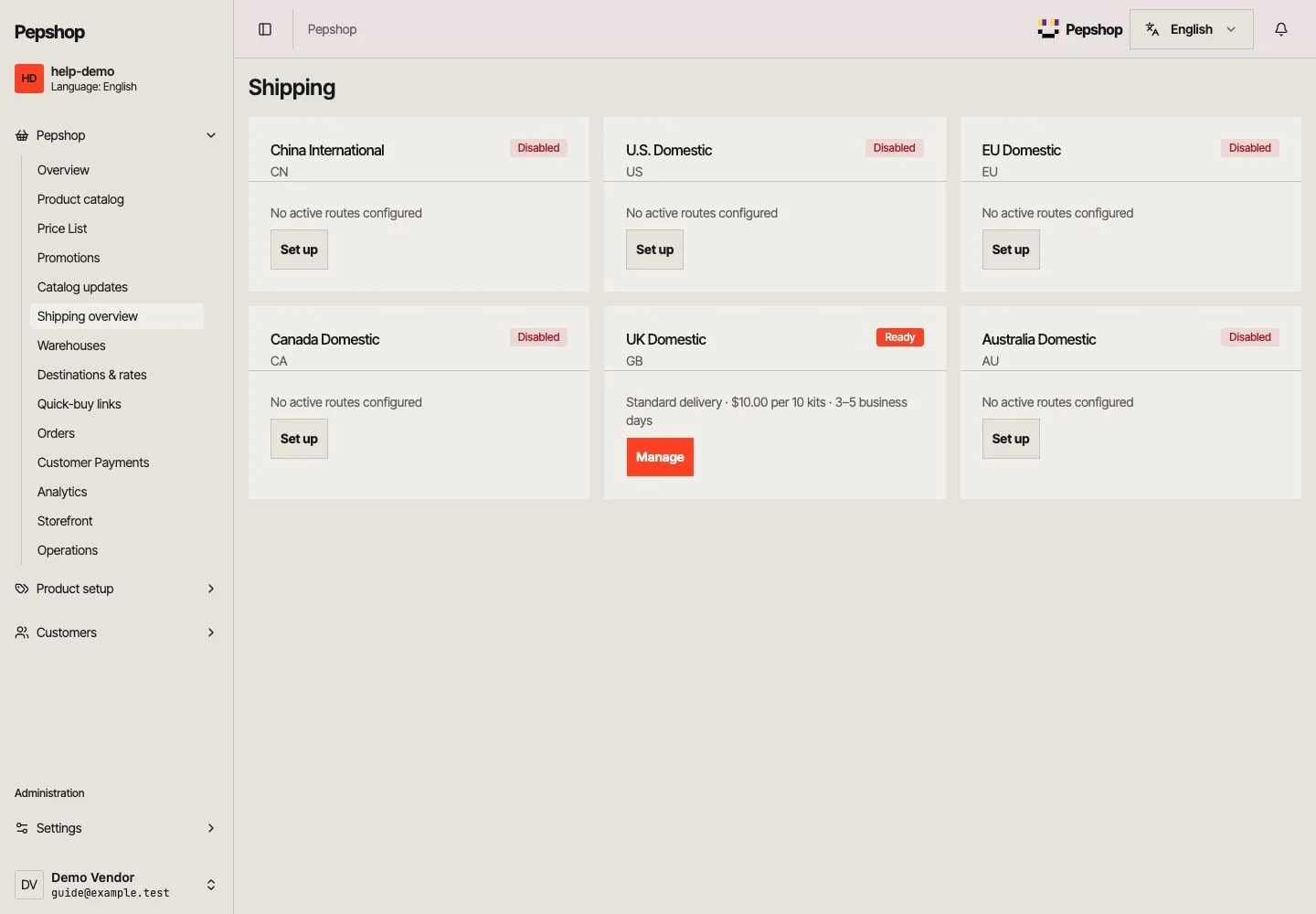
Open Shipping overview. Check each warehouse is active and has usable delivery routes. Investigate an incomplete or disabled status before sharing the shop.
Review Shipping overview
Open Shipping overview. Check each warehouse is active and has usable delivery routes. Investigate an incomplete or disabled status before sharing the shop.
Check warehouses
Open Warehouses to check the origin and enabled delivery scope. Use Price List or the product’s stock settings to verify its warehouse assignment and inventory.
Review Destinations & rates
Check enabled destinations, service names, rate blocks and delivery estimates. Confirm what the price covers before changing a rate.
Preview a customer destination
Open your shop, choose a supported destination and review the shipping options for a representative cart. Every active warehouse needs usable routes; disable warehouses you are not using. Fix missing routes before accepting orders for that destination.
What you should see
Customers in supported destinations can see the intended shipping options and costs.
If something is not right
No delivery option appears
Check the destination, warehouse, enabled route and items in the cart. If your role cannot change these, ask your onboarding contact to review the setup.